Ergonomic Home Office Setup Checklist for UK Workers
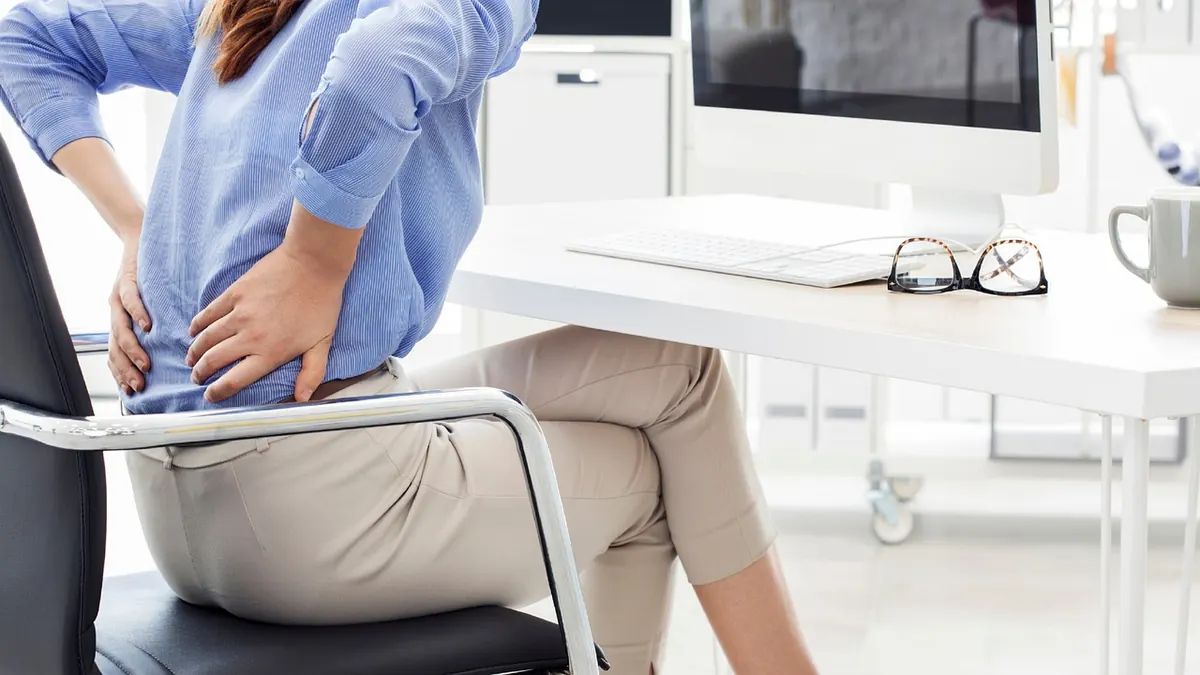
A home office rarely starts out ergonomic. It starts as a spare bedroom, a kitchen table, or a laptop balanced on a stack of cookbooks. That works for a fortnight. Then the ache between your shoulder blades moves in and starts paying rent.
The good news is that you probably don't need to buy much. In most setups, the difference between discomfort and a day that ends without a stiff neck comes from adjusting what you already own, in the right order, and then changing position often enough that your body isn't locked into one shape for eight hours. Work through the checks below and you'll have a workable setup in about twenty minutes.
Begin with the chair, because everything is measured from it
Your desk height, screen height and keyboard angle all depend on where you're sitting, so the chair comes first. Set it once, properly, and the rest of the job gets easier.
- Seat height. Feet flat on the floor, thighs roughly level, hips level with or slightly above your knees. If the chair has to go high enough that your feet dangle, get a footrest instead of lowering the seat and hunching over the desk.
- Seat depth. Aim for a gap of about two fingers between the back of your knee and the front edge of the seat. If the seat presses behind your knees, you'll shuffle forward and lose the backrest.
- Lumbar support. It should sit in the small of your back, near waist height, not in the middle of your shoulder blades. Tighten or slide it until you can actually feel it doing something.
- Armrests. They should let you pull close to the desk with your shoulders dropped. If they clash with the desk edge, lower them or take them off.
- Recline. A slight backward tilt of around 100 to 110 degrees takes load off your lower back. Sitting bolt upright at exactly 90 degrees feels virtuous and rarely lasts past Tuesday.
Set the monitor so your neck can switch off
With the chair sorted, your eye level is fixed. The screen now answers to it, not the other way round.
Put the top of the screen at or just below eye level, so you're looking slightly down at the middle of it. If you wear varifocals, sit the screen a little lower still, because the reading part of the lens sits at the bottom. Distance-wise, an arm's length works for most people, somewhere in the region of 50 to 75cm. If you keep leaning in, the screen is too far away or the text is too small.
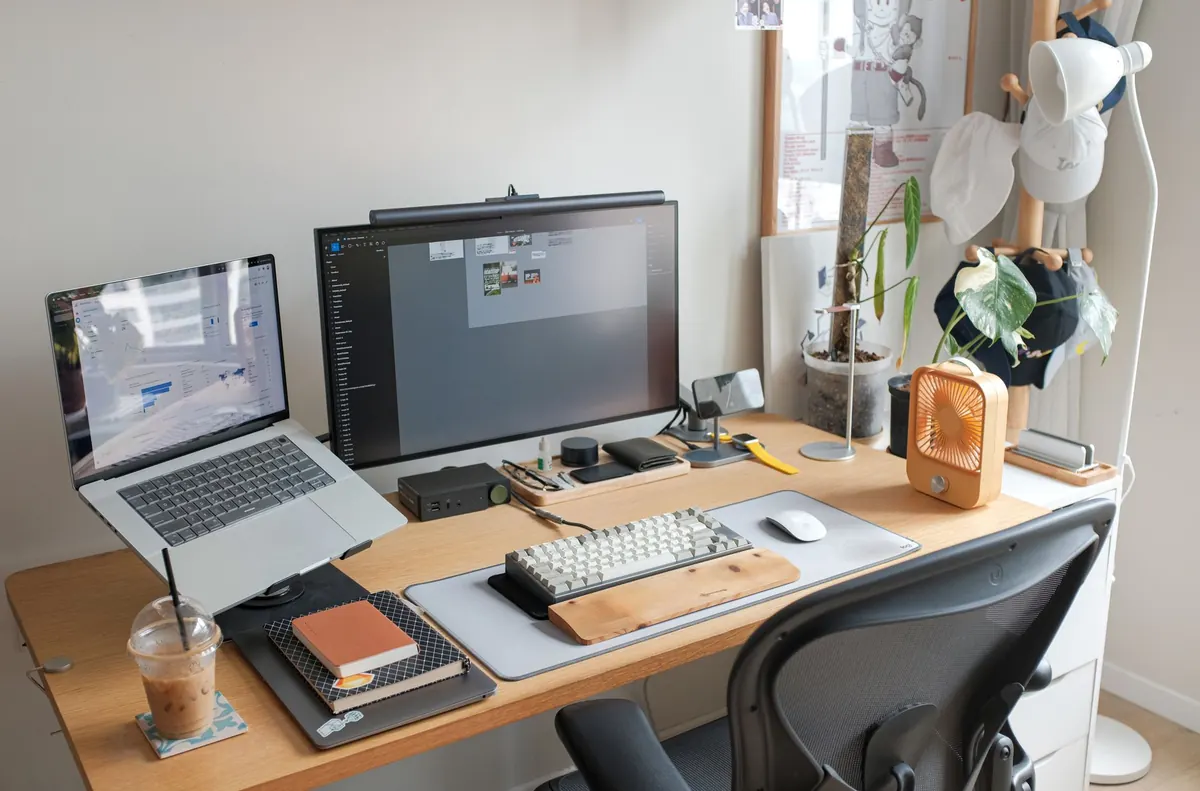
Centre your main screen directly in front of you. With two monitors, put the one you use most straight ahead and angle the second one in towards you rather than twisting your neck to face it. Tilt the screen back very slightly to cut reflections.
Laptops deserve their own warning. A laptop on a desk forces you to choose between a sore neck and sore wrists, because the screen and the keyboard can't both be in the right place at once. Raise it on a stand or a pile of books, then add a separate keyboard and mouse. That single change often does more than anything else in this list.
Keyboard and mouse: small angles, big difference
Your elbows should sit at roughly 90 degrees, or a little more open, with your upper arms hanging loosely. Your keyboard should be flat or, in some cases, tilted so the back edge is slightly lower than the front. Those little pop-out feet at the back do the opposite, and for most people they push the wrists into an awkward bend.
Keep your wrists roughly straight while you type, neither bent up nor pressed down. A wrist rest is for resting on between bursts of typing, not for leaning on while you work. Bring the mouse in close to the keyboard, at the same height, so you're not reaching across the desk a few hundred times a day. If your mouse sits far to the right because your keyboard is wide, a compact keyboard without a number pad can solve a shoulder problem for the price of a keyboard.
Sort the light, and keep things within reach
Glare is an ergonomic problem even though it doesn't feel like one. Avoid sitting with a window directly in front of you, where it reflects off the screen, or directly behind you, where it lights you up like a witness statement. Side-on is the best compromise, with a blind or curtain available for bright afternoons. A simple desk lamp for paperwork helps you avoid hunching towards the screen in the evening.
Then look at what you reach for. Phone, notebook, water, glasses: all of it should come to you without a twist or a stretch. Cold rooms also make for tense shoulders and clumsy fingers, so if your office doubles as the coldest room in the house, sort out the heating before you blame the chair.
Build in breaks that will actually happen
No chair is comfortable for eight hours, and no posture is perfect. The best posture is the next one.
- Every 30 to 40 minutes, stand up and move for a minute or two. Make a drink, walk to the front door, put a mug back in the kitchen.
- Every 20 minutes or so, look at something at least six metres away for 20 seconds. It gives your eyes a change of focus, which matters more than most people expect.
- If you have a sit-stand desk, alternate rather than standing all day. Standing for hours brings its own aches.
- Use the two-minute rule: any small task that takes under two minutes, do it standing or walking. Post the letter, empty the bin, take the call on your feet.
A ten-minute reset you can repeat any Monday
- Sit down and set the seat height so your feet are flat and your thighs level.
- Adjust seat depth and lumbar support until both feel right.
- Pull your chair in close, so you're not perched on the front edge.
- Raise the screen so the top sits at or just below eye level, an arm's length away.
- Place the keyboard flat and the mouse close, with elbows at about 90 degrees.
- Check for glare and move the screen or the blind if you need to.
- Set a timer for a 40-minute stretch, then get up when it goes off.
Tweak, then live with it for a week
Most people buy a new chair before they've adjusted the one they own. Resist that for a week. Make the changes above, note what still nags, and adjust one thing at a time so you can tell what helped. Small, repeated tweaks beat a single expensive purchase you never quite got right.
One sensible caveat: if you're getting numbness, tingling or pain in your hands, arms or neck that lasts more than a day or two, or keeps coming back, see your GP or a physiotherapist rather than endlessly rearranging your desk. If you're employed and use a screen for most of the working day, your employer has duties around workstation assessment, so it's entirely reasonable to ask for one.
Photo: kevin120415 / Pixabay